User Guide
Learn how to create apps, customize designs, build APKs, and send push notifications.
On this page
Creating Your First App
Once you're logged in, you can start creating apps for your website or platform.
Navigate to Apps Dashboard
After logging in, you'll be taken to your apps dashboard at User > Apps. This is where all your apps are listed.
Click "Create New App"
Click the Create New App button to open the app creation wizard.
Choose Platform
Select the platform for your app:
- Android WebView: Convert your website into an Android app (most popular)
- iOS: Coming soon
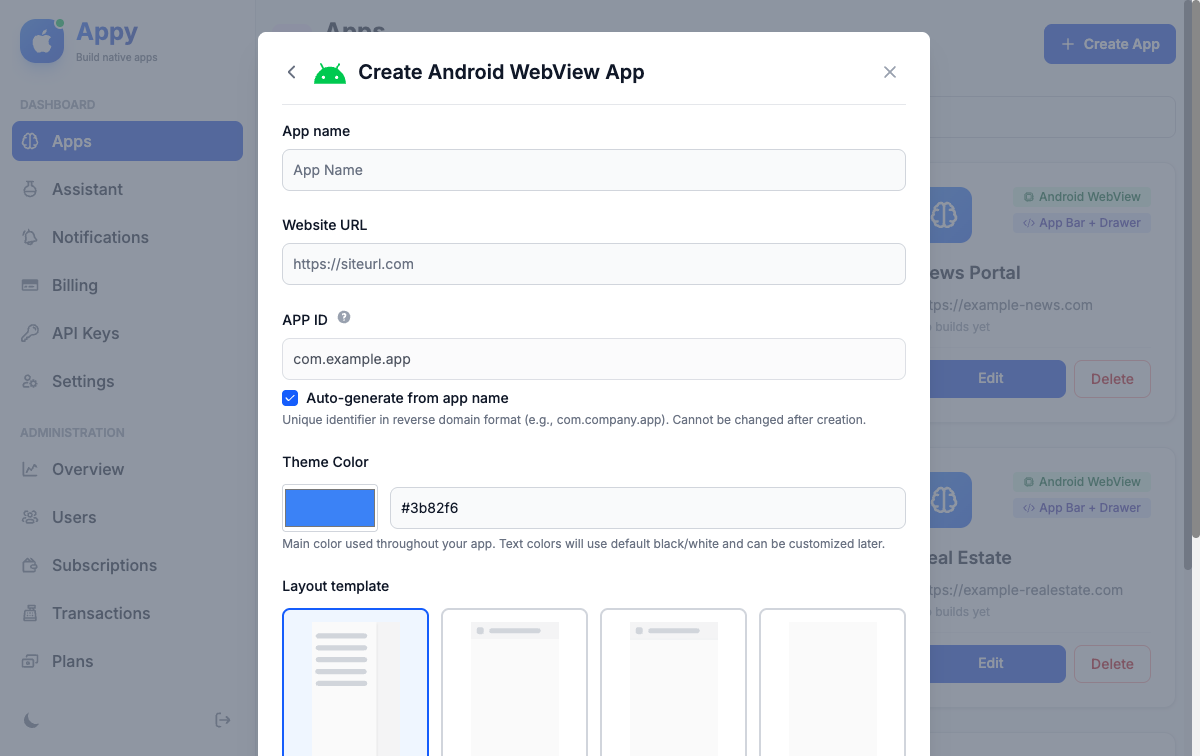
Enter Basic Information
Fill in your app details:
- App Name: The name of your app
- Website URL: Your website address (e.g., https://example.com)
- Package Name: A unique identifier (e.g., com.yourcompany.appname)
Tip: Package names must be unique and cannot be changed later. Use reverse domain notation like com.yourcompany.appname.
Configuring App Settings
After creating your app, you'll be taken to the app editor where you can customize everything about your app.
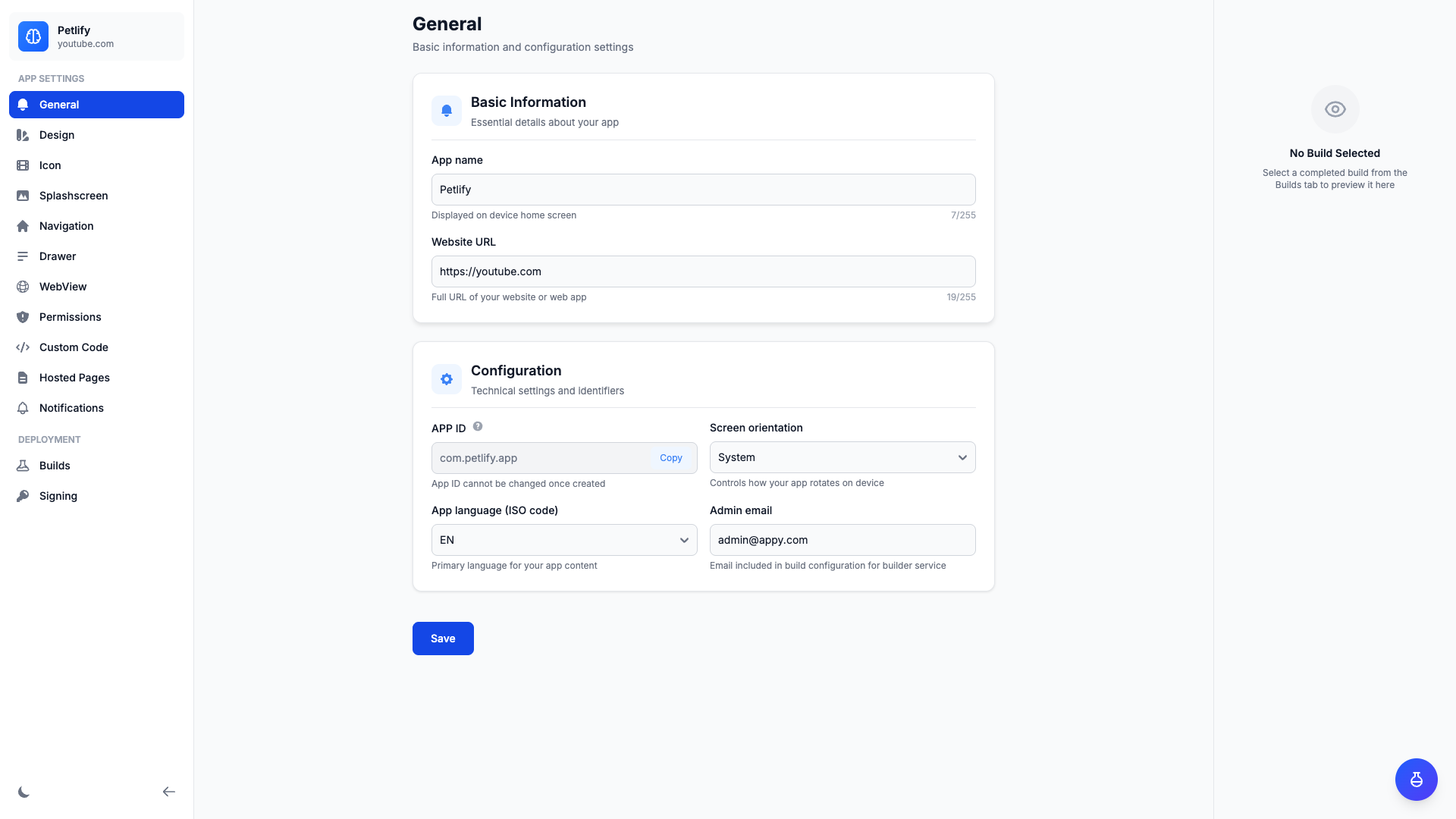
General Settings
Configure basic app information and versioning:
- App Name: Change your app's display name
- Website URL: Update the website your app loads
- Version Name: User-facing version (e.g., 1.0.0)
- Version Code: Internal build number (increment for each release)
- Package Name: View your unique package identifier
Design Settings
Customize your app's appearance:
- Theme Color: Primary color for Android's UI elements
- Title Color Scheme: Light or dark status bar and navigation bar
- Enable Dark Mode: Allow users to use dark theme
Icon Settings
Upload your app icon:
- App Icon: Upload a square PNG (512x512px recommended)
- Adaptive Icon: Separate foreground and background for modern Android devices
- Background Color: Color for adaptive icon background
Important: Use high-quality icons. Low-resolution or blurry icons may be rejected by the Google Play Store.
Splash Screen Settings
Configure what users see when launching your app:
- Background Type: Solid color or image
- Background Color: Hex color code (e.g., #3B82F6)
- Background Image: Full-screen background image
- Icon Type: Choose between app icon or custom image
- Splash Text: Optional tagline below the icon
Navigation Settings
Choose how users navigate your app:
- Navigation Bar Type: None, Bottom Navigation, or Drawer
- Bottom Bar Visibility: Always visible or auto-hide when scrolling
- Navigation Items: Add menu items with labels, icons, and URLs
Drawer Settings
If using a navigation drawer (hamburger menu):
- Enable Drawer: Show/hide the navigation drawer
- Drawer Position: Left or right side
- Drawer Logo: Upload a logo for the drawer header
- Background Image: Optional background for drawer header
- Drawer Items: Menu items for drawer navigation
WebView Settings
Control how your website behaves in the app:
- Enable JavaScript: Required for most modern websites
- Enable Zoom Controls: Allow users to pinch-to-zoom
- User Agent String: Custom user agent (optional)
- Cache Mode: Control browser caching behavior
- Show Loading Indicator: Display a progress bar while loading
- Error Page URL: Custom error page when offline
Permissions Settings
Select Android permissions your app needs:
- Internet (automatically included)
- Camera
- Location (Fine and Coarse)
- Microphone
- Storage (Read and Write)
- And more...
Tip: Only request permissions your app actually uses. Excessive permissions may discourage users from installing.
Custom Code (Advanced)
If your plan includes custom code, you can inject HTML, CSS, and JavaScript:
- Custom HTML (Head): Injected into the WebView's <head> tag
- Custom HTML (Body): Injected before the closing </body> tag
- Custom CSS: Additional styling for your web content
- Custom JavaScript: Add analytics, chatbots, or custom functionality
Hosted Pages
Hosted Pages allow you to create custom HTML pages that are served directly to your app's WebView. This feature is useful for creating custom content pages, terms of service, privacy policies, or any custom content that needs to be displayed within your app.
Note: Hosted Pages require a subscription plan with this feature enabled. Check your plan features or upgrade if needed.
Creating a Hosted Page
- Navigate to your app editor and click the Hosted Pages tab
- Click Add Page to create a new hosted page
- Enter a Slug - this will be the URL path for your page (e.g., "terms" creates /p/your-app/terms)
- Enter a Title for your page
- Add your HTML content using the editor
- Click Save to publish your page
Accessing Hosted Pages
Your hosted pages are accessible at:
https://yourdomain.com/p/{app-id}/{slug}You can link to these pages from your app's navigation menu, drawer items, or directly from your website's content.
Use Cases
- Legal Pages: Terms of service, privacy policy, cookie policy
- Support Pages: FAQ, help documentation, contact forms
- Custom Content: About pages, feature announcements, promotional content
- Offline Content: Essential information that needs to work without your main website
Limit: The number of hosted pages per app is determined by your subscription plan. Check your plan's max_hosted_pages_per_app limit.
Building Your App
Once you've configured your app, you can build it into an installable APK file.
Understanding Build Credits
Each app build consumes build credits from your subscription plan. Your available credits are shown in the top navigation bar.
Triggering a Build
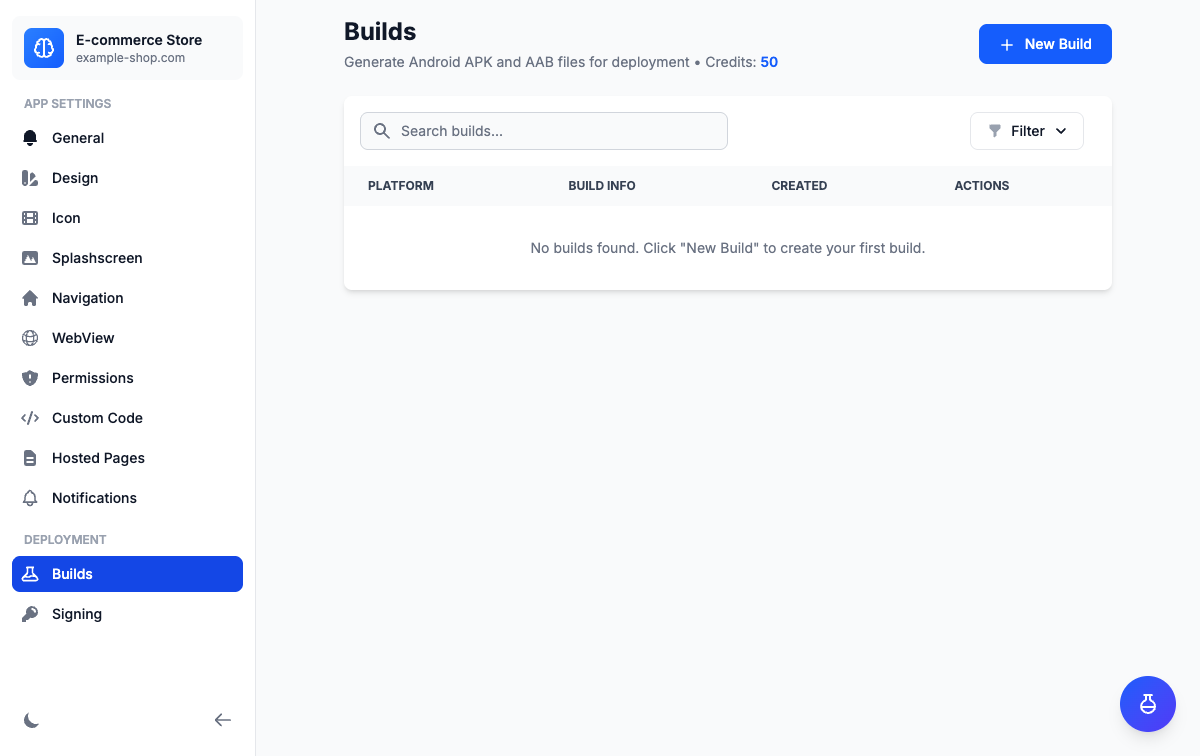
Navigate to Builds Tab
In your app editor, click the Builds tab.
Click "Build App"
Click the Build App button to open the build modal.
Choose Build Options
- Build Type: Debug (for testing) or Release (for publishing)
- Build Format: APK (easy install) or AAB (for Google Play)
- Signing Key: For release builds, select or upload a keystore
Confirm and Build
Review the credit cost and click Build App. Your build will be queued.
Build Status
Monitor your build progress in the Builds tab:
- Pending: Waiting for an available builder
- Building: Currently being compiled
- Completed: Ready to download
- Failed: Build encountered an error
Most builds complete within 5-10 minutes. You'll receive an email notification when your build is ready.
Downloading Your App
Once completed, you can:
- Download APK/AAB: Click the download button to get the file
- Scan QR Code: Install directly on your Android device by scanning
- Preview in Browser: If Appetize is enabled, preview without downloading
- View Build Logs: Check compilation details and troubleshoot errors
Signing Keys for Release Builds
Release builds require a signing keystore. You can:
- Generate New Keystore: Click "Generate Keystore" to create one automatically
- Upload Existing Keystore: If you have one from a previous app
Critical: Save your keystore file and passwords securely. You cannot update your app on Google Play without the original keystore.
Sending Push Notifications
Keep users engaged by sending push notifications directly to their devices.
Setting Up Firebase
Before sending notifications, you need to configure Firebase for your app:
Create Firebase Project
Go to Firebase Console and create a new project.
Add Android App
Click Add app, select Android, and enter your package name from Appy.
Download Configuration Files
Download google-services.json and service account credentials JSON.
Upload to Appy
In your app's Notifications tab, upload both JSON files and enable push notifications.
Sending a Notification
Once Firebase is configured:
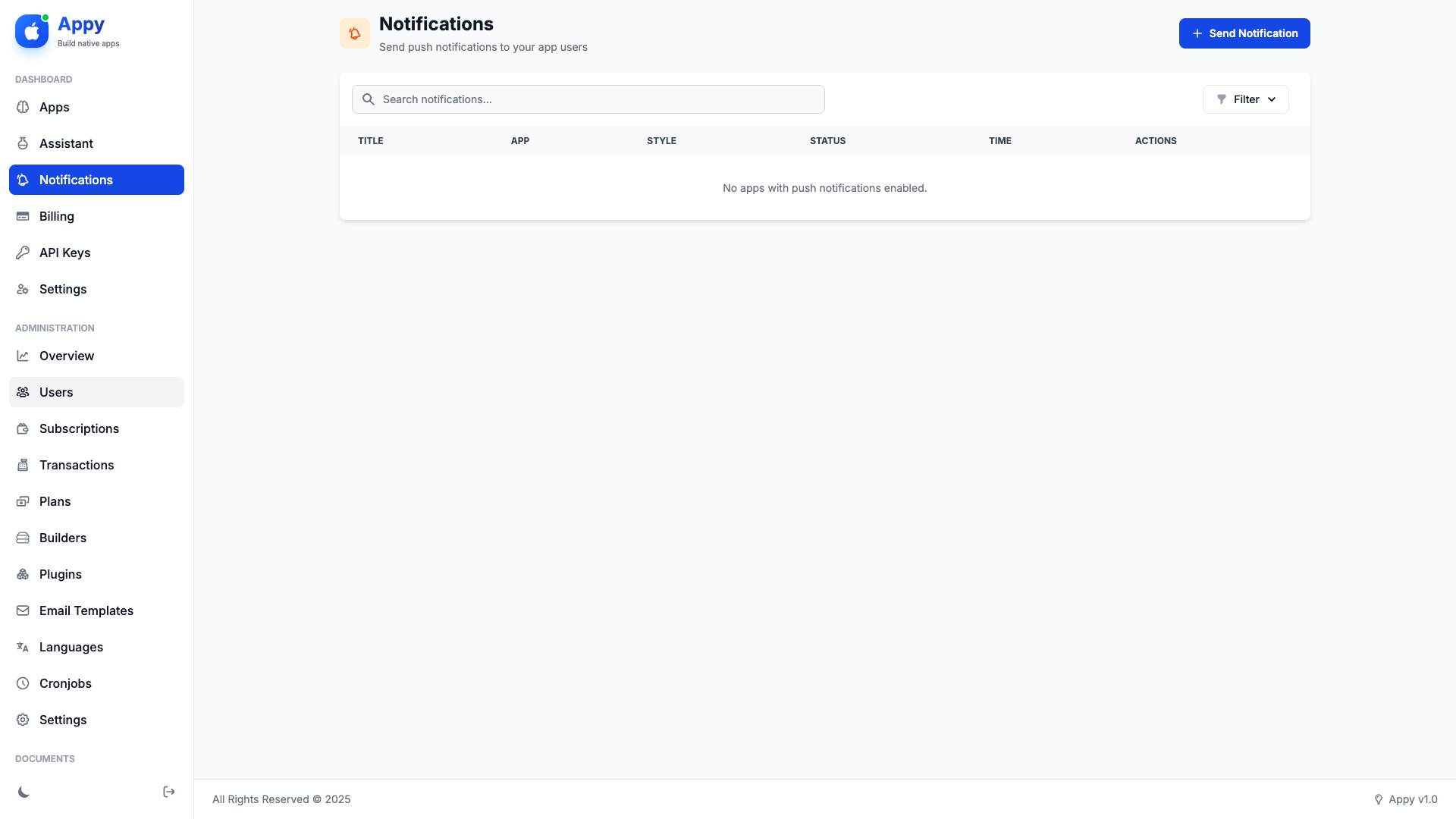
- Navigate to User > Notifications
- Click Send Notification
- Select the app to send to
- Enter notification title and message
- Optionally add an image URL
- Choose to send now or schedule for later
- Click Send Notification
Note: Notifications are only received by users who have installed your app and granted notification permissions.
Managing Your Subscription
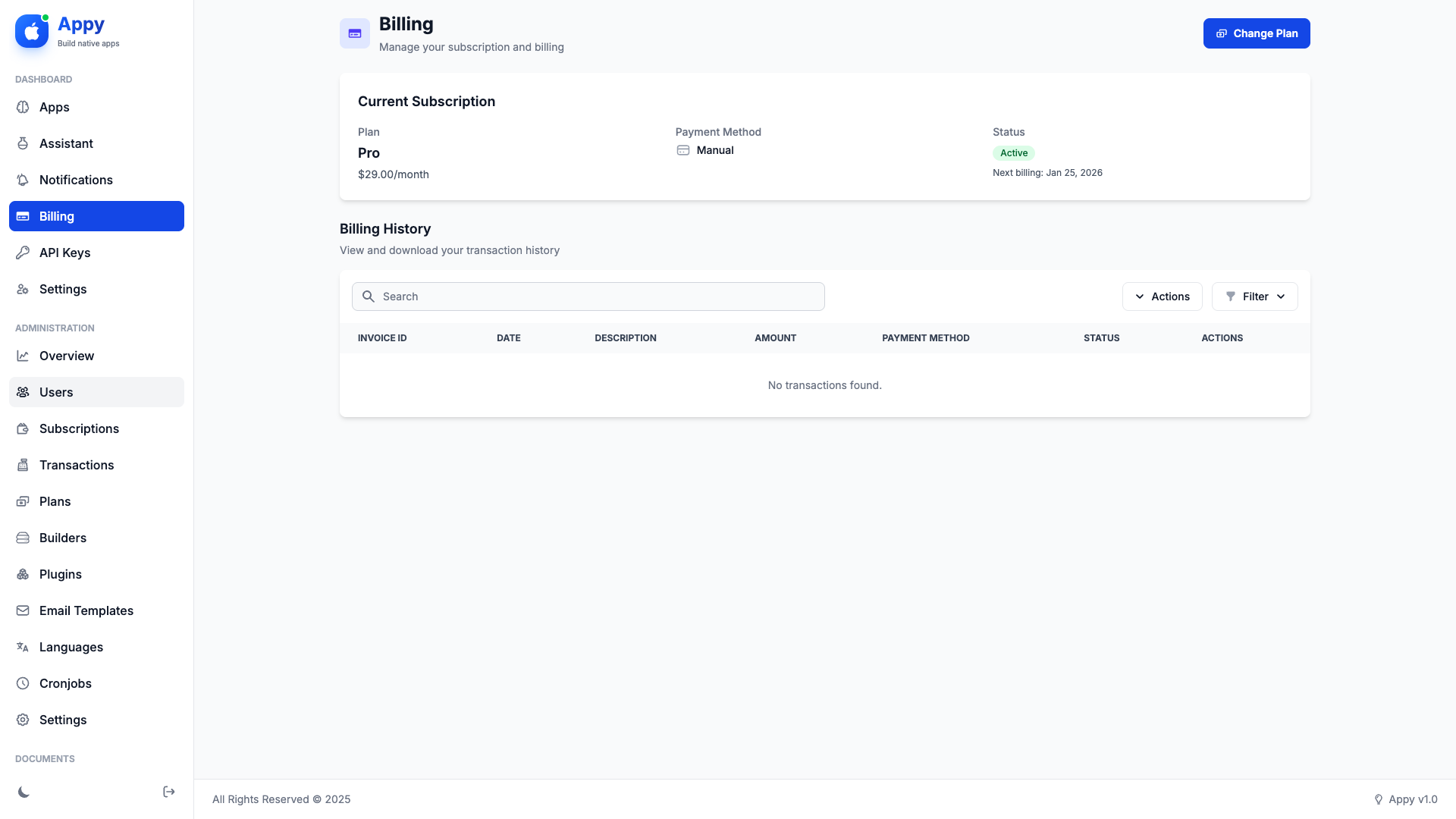
View and manage your subscription plan and billing information.
Viewing Your Plan
Navigate to User > Billing to see:
- Your current plan name and price
- Available build credits
- Appetize preview minutes (if applicable)
- Plan features and limits
- Next billing date
Upgrading or Downgrading
To change your plan:
- Click Change Plan on the billing page
- Select a new plan
- Choose a payment method
- Complete the payment
- Your plan changes immediately
Canceling Your Subscription
To cancel:
- Go to User > Billing
- Click Cancel Subscription
- Confirm cancellation
- You can continue using your plan until the end of the billing period
- After expiration, you'll be downgraded to the free plan
Transaction History
View all your past payments and download invoices from the billing page. Click on any transaction to view or download a PDF invoice.
AI Chat Assistant
Appy includes an AI-powered chat assistant to help you configure your apps, troubleshoot issues, and get answers to your questions.
Accessing AI Chat
Navigate to User > AI Chat to access the AI assistant. You can also use the AI widget embedded in the app editor for context-aware help.
Supported AI Providers
Appy supports multiple AI providers:
- OpenAI: GPT-4.1, GPT-4o, and GPT-4o-mini models
- Anthropic: Claude Opus, Claude Sonnet, and Claude Haiku models
Token Usage
AI conversations consume tokens from your monthly allocation. Check your remaining tokens at the top of the AI Chat page. Your plan determines:
- Monthly token allocation
- Whether you can use your own API key
Using Your Own API Key
If your plan allows it, you can use your own OpenAI or Anthropic API key:
- Click the settings icon in the AI Chat page
- Select your preferred provider
- Enter your API key
- Choose your preferred model
- Click Save Settings
Tip: When using your own API key, tokens are billed directly to your AI provider account, not deducted from your Appy allocation.
AI Chat Features
- App Configuration Help: Get suggestions for app settings and design
- Troubleshooting: Describe issues and get solutions
- Tool Execution: The AI can modify your app settings directly with your permission
- Conversation History: Access previous conversations from the sidebar
- Context-Aware: The AI widget in the app editor understands your app's current configuration
AI Tool Capabilities
The AI assistant can perform actions on your behalf when using the in-app widget. These actions require your explicit confirmation:
- Update App Settings: Change app name, URL, theme colors, and other general settings
- Modify Design: Adjust design settings like dark mode, status bar colors
- Configure Navigation: Update navigation items, drawer settings, and menu configurations
- WebView Settings: Enable/disable JavaScript, zoom controls, and other WebView options
Safe by Default: All AI actions are requested through a confirmation dialog. You must approve each action before it's executed.
Managing API Keys
Generate API tokens to integrate Appy with external applications and automation workflows.
Note: API access requires a subscription plan with API access enabled. Check your plan features or contact your administrator.
Creating an API Key
Navigate to API Keys
Go to User > API Keys to manage your tokens.
Create New Token
Click Create API Key and enter a descriptive name for your token (e.g., "CI/CD Integration").
Copy Your Token
Your token will be displayed once. Copy it immediately - you won't be able to see it again.
Security: Keep your API tokens secure. Never share them publicly or commit them to version control. If a token is compromised, delete it immediately and create a new one.
Managing Tokens
From the API Keys page, you can:
- View all tokens: See a list of all your active API tokens
- Last used: Check when each token was last used
- Delete tokens: Revoke access by deleting unused or compromised tokens
Privacy & Account
Manage your privacy preferences, request data exports, and control your account.
Consent Management
Appy allows you to control how your data is used. Navigate to your account settings to manage:
- Marketing Communications: Opt in or out of promotional emails
- Analytics: Control whether usage analytics are collected
- Third-Party Services: Manage integrations with external services
Requesting Data Export
You can request a complete export of your data:
- Navigate to your account settings
- Click Request Data Export
- Wait for the export to be generated (usually within 24 hours)
- Download your data as a ZIP file containing JSON files
The export includes your profile, apps, subscriptions, transactions, and notification history.
Account Deletion
If you wish to delete your account:
- Navigate to your account settings
- Click Delete Account
- Confirm your decision
- Your account will be scheduled for deletion with a grace period
Grace Period: Account deletion has a grace period (typically 7 days). You'll receive an email with a link to cancel the deletion if you change your mind.
After deletion, the following data will be permanently removed:
- Your account and profile information
- All apps and their configurations
- Build history and artifacts
- Subscription and transaction records
- Notification history
© 2026 Titan Systems. All Rights Reserved.